 by
by Learn about the features of the Premium Account for Clinicians and Psychologists in this video.
For more information, read this article.
1. What is the Premium subscription for healthcare professionals from CogniFit?
The Premium subscription for healthcare professionals from CogniFit allows you to personalize the experience of your patients and create personalized cognitive training programs adapted to the needs of each client.
Additionally, the Premium subscription includes a permanent, exclusive discount on all of CogniFit’s products as well as the ability to use your own company branding and logo in the tasks and downloadable reports from CogniFit.
2. What is included with the Premium subscription for healthcare professionals from CogniFit?
The Premium subscription includes all the tools you need to scale your business and create customized programs for your patients. With the Premium subscription from CogniFit, you get access to:
- Tracking and graphs of the progress of each patient
- Downloadable reports for your patients
- The full suite of training tools
- The full suite of cognitive evaluation tools
- White-labeled results reports with your company branding
- White-labeled games with your company logo
- Customizable training plans
- Tools for managing associated accounts
- A 10% discount on all of CogniFit’s products
- 2 FREE licenses to get started
- 14-day free trial with zero obligation to buy
3. What is the difference between the basic and Premium accounts for healthcare professionals?
The basic account for healthcare professionals includes the basic tools necessary to facilitate your work with your patients. The basic account grants access to:
- Tracking and graphs of the progress of each patient
- Downloadable reports for your patients
- The full suite of training tools
- The full suite of cognitive evaluation tools
4. How do I register for the Premium subscription?
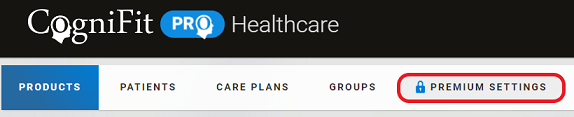
To register for the Premium subscription, log in with your professional account or create a new professional account in Cognifit. In the main dashboard, select the option Premium Settings from the navigation menu. From the page that opens, you will be able to upgrade to the Premium account.
5. How much does a Professional subscription cost? What plans are available?
Subscriptions are available on a monthly or yearly basis.*
*Prices valid for the USA only. Prices in the currency of your country may vary.
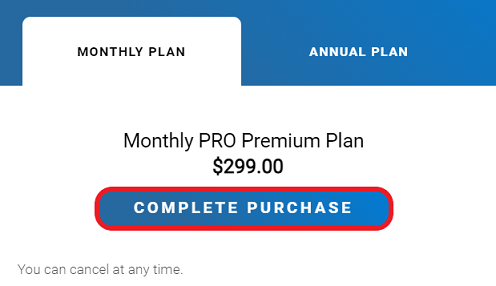
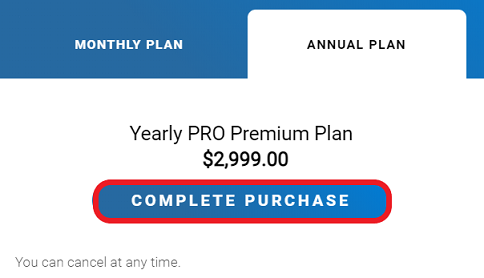
Select the desired plan and click on the “Complete purchase” button.
6. How do I purchase licenses for the Premium account?
The licenses for the Premium account can be purchased in the same way as for the basic account. However, all licenses purchased with a Premium account include a PERMANENT 10% discount. How do health professionals purchase cognitive interventions?
7. How can I benefit from having the Premium subscription for my center?
The cognitive stimulation programs for patients benefit from being as personalized as possible. Creating a customized plan for each client can be one of the most important advantages and can generate increased patient satisfaction and promote continued progress.
CogniFit always has this in mind as we work to make it as simple as possible for you to scale your clinic and offer the best service to your clients. Using our Premium features, you will be able to:
- Quickly and efficiently create cognitive training plans based on the individual needs and abilities of each client.
- Track the progress of each of your patients in real time.
- Build trust in your personalized rehabilitation program.
8. I already have a professional account in CogniFit, how do I upgrade to Premium?
Sign in to your account and follow the steps above on question 4.
9. How do I change or cancel my Premium subscription?
To cancel your Premium subscription, sign in to your CogniFit account and select Account Settings from the navigation menu in the top right corner. From the page that opens, select Payments.
If you want to switch between monthly and annual plans, select CHANGE PLAN. If you want to cancel your subscription, select UNSUBSCRIBE PLAN.
10. How can I add my organization’s logo to my Premium account? Where will it appear?
The Premium subscription allows you to include your organization’s logo and adapt the training programs and reports you provide your patients with your clinic’s branding.
You can add a logo to the interface of CogniFit’s games as well as to the results reports from your patients’ evaluations. This option appears once you activate your Premium subscription.
To include your logo, log in to CogniFit with your professional account, and from the main dashboard, hover over Premium Settings in the navigation menu. From the dropdown, select Add your logo.
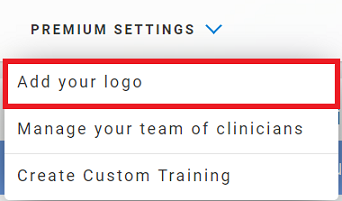
Follow the instructions that appear on the page.
11. How can I create personalized training plans for my patients? How do I select the games for the personalized training plans?
The Premium subscription for healthcare professionals allows you to create personalized plans for your patients and design your own training sessions adapted to the individual needs of each of your clients.
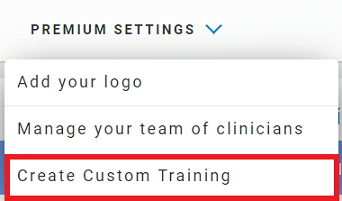
To create a personalized training plan, sign in to your professional account and navigate to the main dashboard. From the dashboard, hover over Premium Settings and select Create Custom Training from the dropdown menu.
Once you have accessed the custom training page, you can begin to create personalized training plans for your patients.
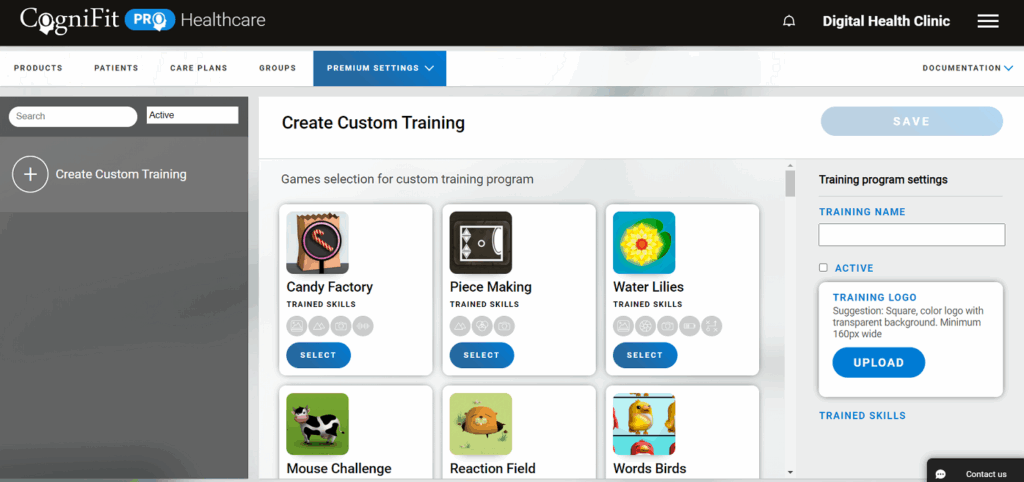
Each of CogniFit’s tasks has been scientifically validated and designed to train specific cognitive abilities. Based on the cognitive abilities you wish to train, you will be able to choose the appropriate games for the personalized training plan for each patient.
To aid you in selecting the best games, we recommend that you read the information about each of the cognitive abilities each game helps train available here.
12. What is an ‘associated account’ and how can I manage the licences assigned to each account?
With a Premium subscription, you are able to manage and administer any number of associated accounts, right from your Premium account dashboard.
An associated account refers to an account belonging to another professional or clinic that you link to your Premium account. These associated accounts can belong to various specialists (doctors, psychologists, etc.), departments, or offices belonging to your clinic.
To create a team of clinicians from a Premium Clinician the following steps must be carried out:
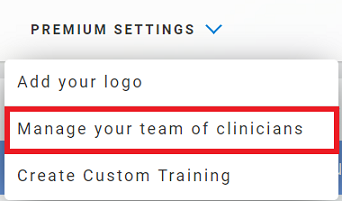
12.1 Log in to your Premium account with subscription and from the Premium Settings drop-down menu in the control panel on the main page of your account choose the “Manage your team of clinicians” tab.
12.2 Within “Premium settings”, you can start inviting Clinicians by clicking on “Add sub-account” and filling in the details of this sub-account. You will be able to create a new clinicians account from there or use an old one. You can add as many sub-accounts as you want and add purchased licenses to them.
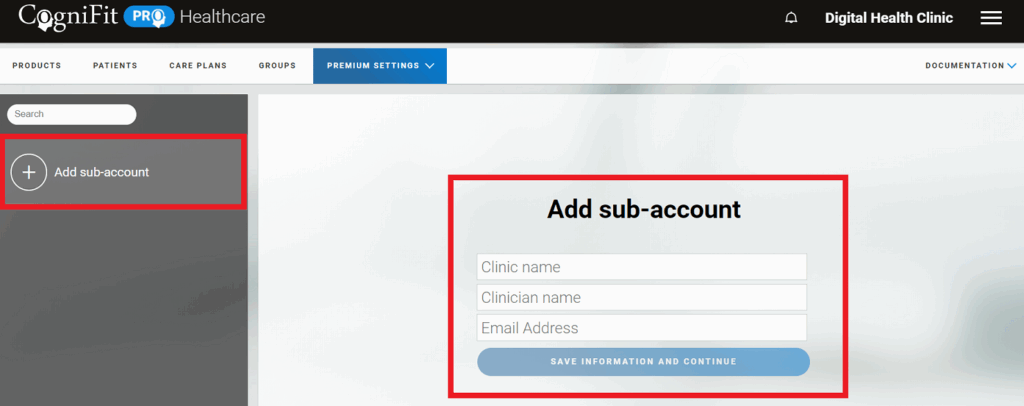
12.3 Once you have entered the data, click on the “Save information and continue” button.
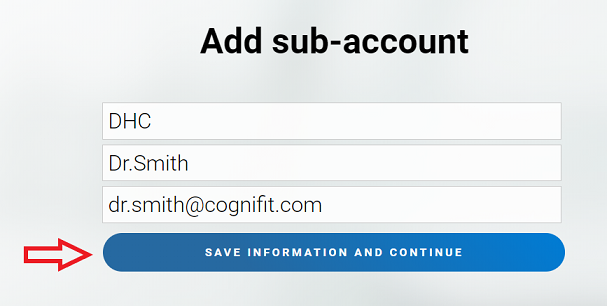
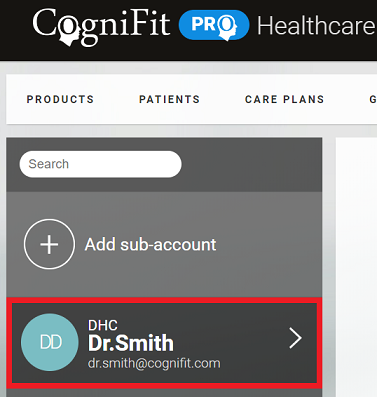
The account will be added to the list of subaccounts.
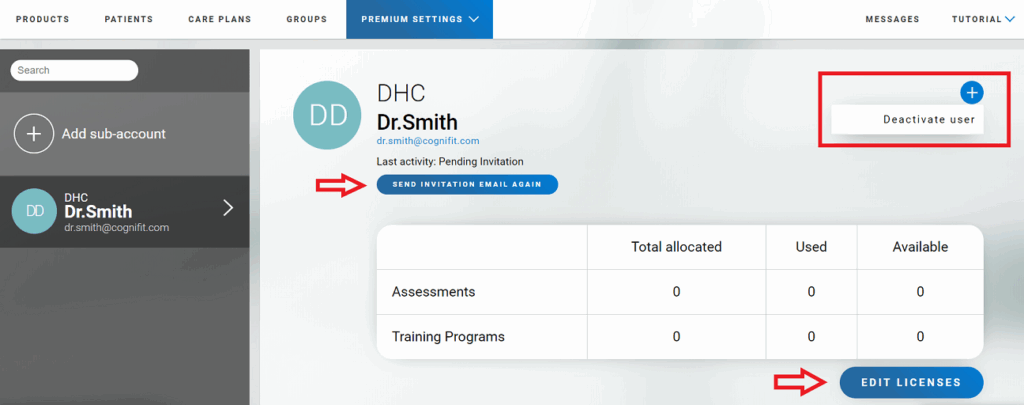
12.4 The added professional user must accept the invitation sent automatically by e-mail. Once the invitation has been accepted, the Premium Professional account holder can add licenses to the new physician/clinic by clicking on the “Edit licenses” button. To remove a user, click on the “+” sign at the top right of their profile page and then click on the “Deactivate user” option.
12.5 This is the email that the physician/clinic will receive. To accept the invitation, you must click on “Join now”.
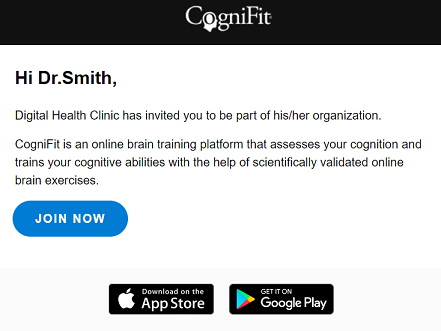
The registration page will then open. Select the option “I´m a health professional”.
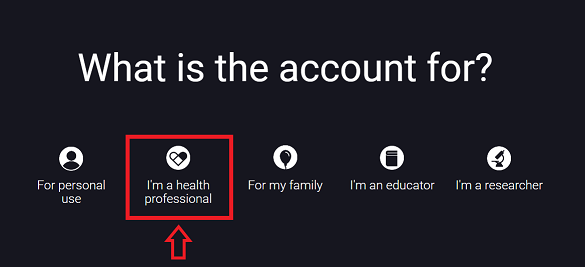
You must complete the registration by following the instructions on the platform. To register, you must use the same email address to which you received the invitation.
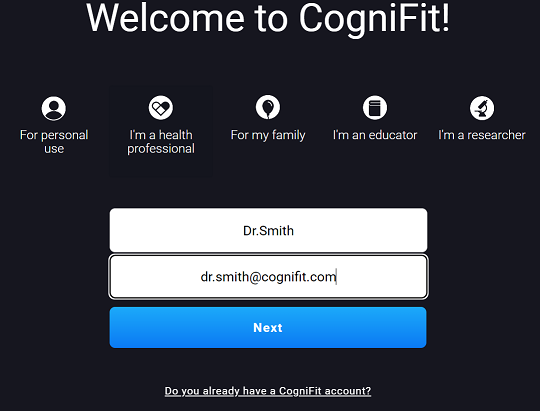
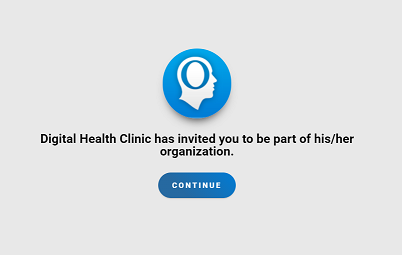
When you have entered the data and log in to the new account, the invitation from the Premium Clinician to be part of his organization will appear.
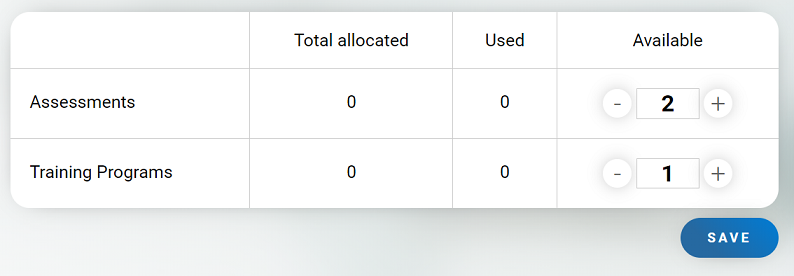
12.6 Once the physician/clinic has accepted the invitation, the Premium account holder can assign the necessary licenses for assessments and/or trainings. Click on the “Edit licenses” button, assign the licenses (to assign/edit use “+” and/or “-“) and save the changes. Information about assigned and used licenses is available in the user’s profile.
13. Is there a Premium option available for Researcher or School accounts?
Currently, the Premium subscription is available for healthcare professionals and researchers .
14. Can I access the Premium subscription for healthcare professionals on a mobile device?
Similar to the basic plan for healthcare professionals, the features available in the Premium subscription are currently accessible through a computer web browser (using the browser, healthcare professionals can invite patients, view their activity, and track their results). Patients have the option of accessing content through the mobile phone app or on a computer using their CogniFit account, where they can complete assessments and training sessions recommended by their healthcare professional.
If you have any questions you can contact our support team by sending an email to support@cognifit.com