 by
by 1. If you are using a computer
1.1 Log in to the CogniFit Homepage and Open the Assessments page
Once logged into your CogniFit account, you will see your personal homepage. Go to the tests page by clicking on the Assessments option at the top of the screen.
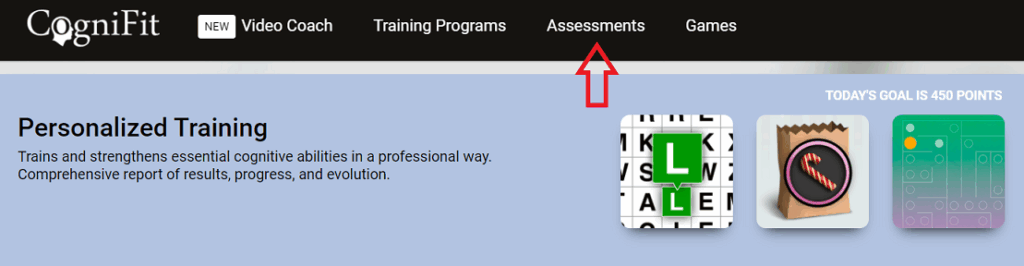
1.2 Choose the assessment that you want to take
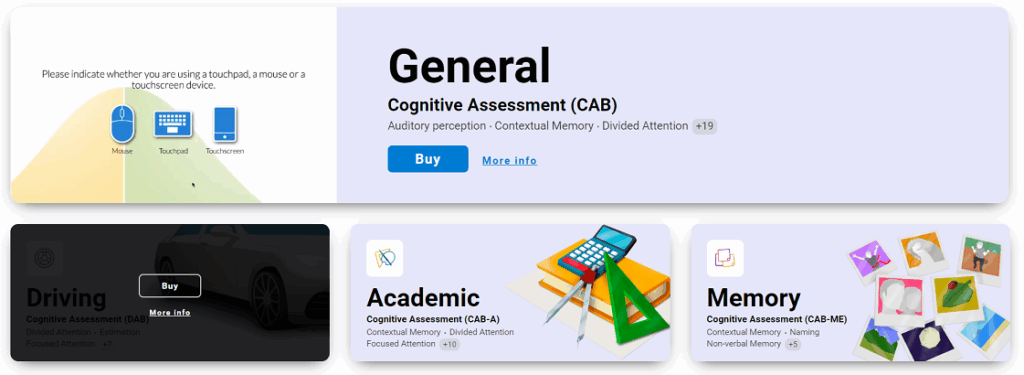
Once you’re on your Assessments page, you will see options for the General Cognitive Assessment, as well as all of our other cognitive assessments.
Choose the option that suits you best, hover your mouse over the desired test and click Buy.
Note: With the purchase of any CogniFit training subscription, you get access to all cognitive tests. The same assessment can be performed again after 30 days (with an active subscription). If you are only interested in assessments, you will find instructions on how to acquire them in this article.
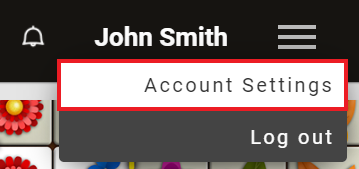
Note: You can also purchase evaluation licenses from the Preferences page of your account. To do this, click on the menu in the upper-right corner of the screen and select the Account Settings option.
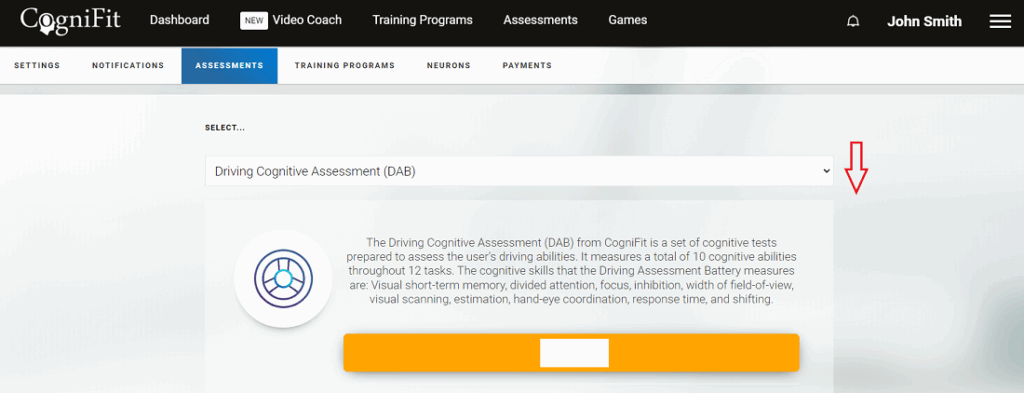
Next see the “ASSESSMENTS” tab and then use the drop down menu to select the desired test and click on the payment button below the test description.
1.3 Complete your purchase
Once you have chosen your assessment, you will see the payments page appear on the screen. Follow the instructions of the payment platform. Enter the requested information and complete the purchase. You will have access immediately.
2. If you are using a mobile device
Note: With the purchase of any CogniFit subscription plan, you get access to all cognitive tests. The same assessment can be performed again after 30 days (with an active subscription).
2.1 Open the CogniFit App to the Assessments Section
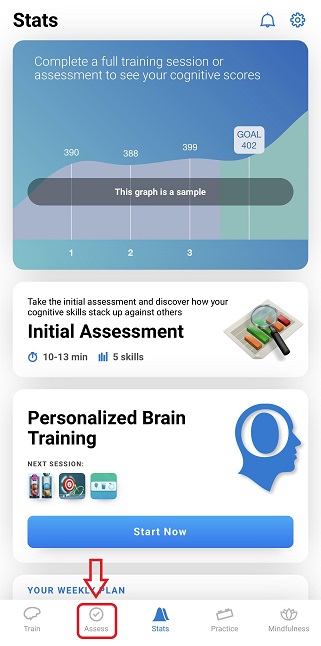
Once logged into your CogniFit account, you will see several options on the navigation bar at the bottom of the screen. Tap on the icon labeled Assess to open the Assessments tab and view available assessments.
2.2 Choose the Desired Assessment
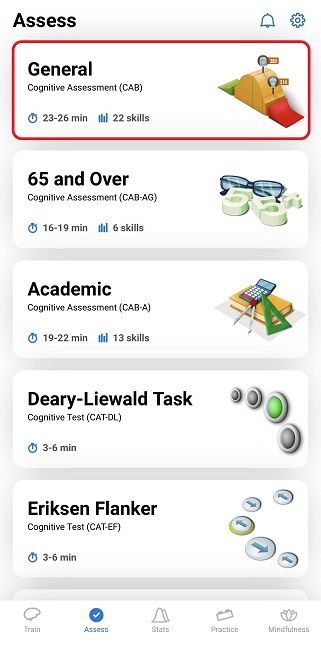
Once the Assessments tab is open, scroll up or down to find the assessment you would like to open, in this case the General Cognitive Assessment, and tap to select.
2.3 Review and Begin the Assessment
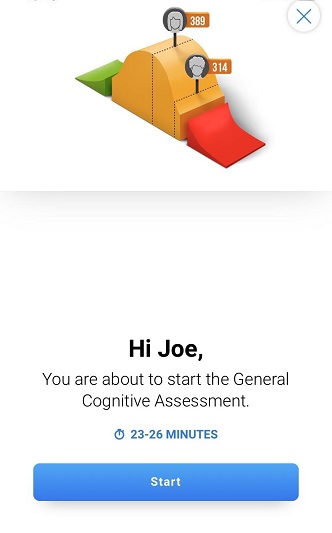
You can start the assessment by simply clicking on the desired test and then on the Start button.
For information on how to assign a test to users in professional accounts, read the articles:
If you have any questions you can contact our support team by sending an email to support@cognifit.com