 by
by This process is slightly different from adding an intervention to a new patient and adding a new intervention to one of your patients who has already been added to your account.
It only takes a few minutes to set up!
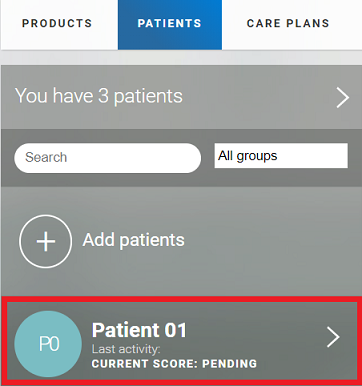
1. Go to the patients page.
Log into your CogniFit account and click on the “Patients” tab at the top.

2. Select the patient for whom you want to change the intervention settings.
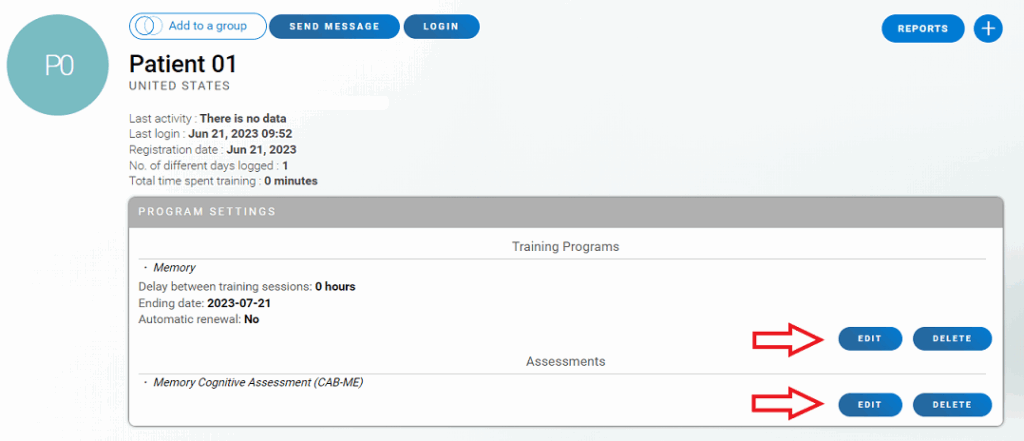
3. Go to the patient’s profile and click on the “Edit” button.
Note: If you only want to delete programs previously assigned to a patient, click the Delete button next to Assessments and / or Trainings.
4. Change the assigned program.
4.1 If you want to edit or assign an assessment
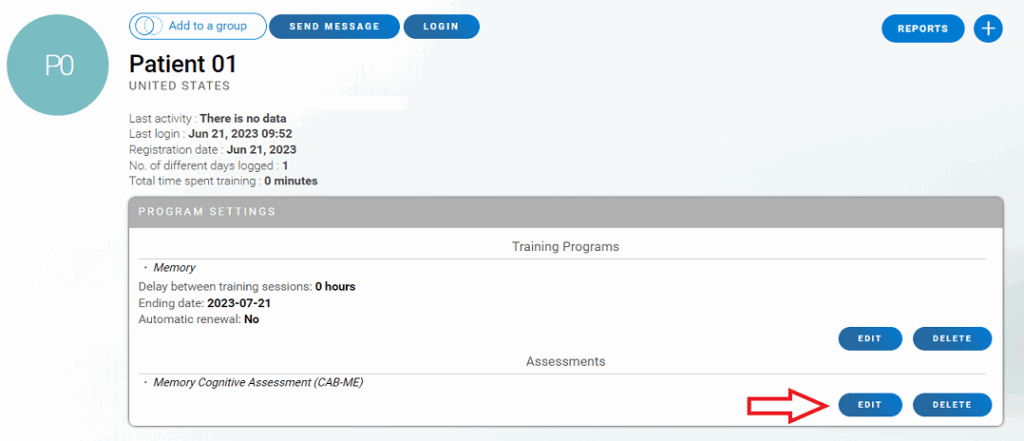
4.1.1 Click the Edit button under Assessments on the patient’s profile page.
4.1.2 Select a new assessment to assign to the patient
On the page that opens, you will see on the right the assessment that was previously assigned to the patient. You can replace it or add a new one.
Select the desired assessment from the menu.
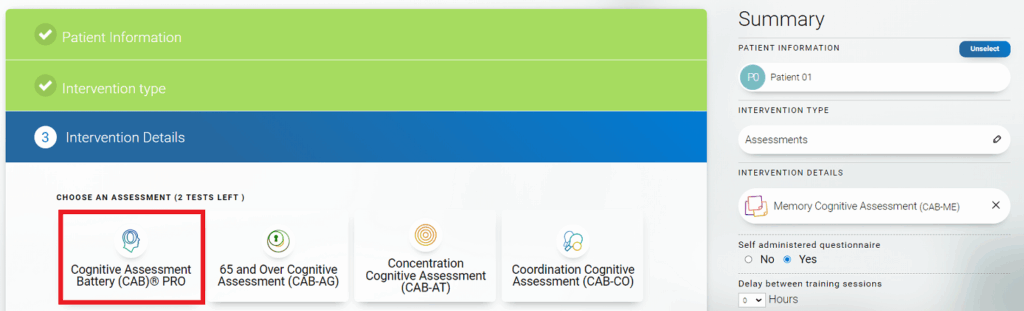
The new assessment will appear on the right side of the screen.
If you want to replace an old evaluation with a new one, click the “x” next to the evaluation you want to delete.
Note: Clicking the Unselect button will unselect that patient. To start over, you will need to return to the patient menu on your account home page.
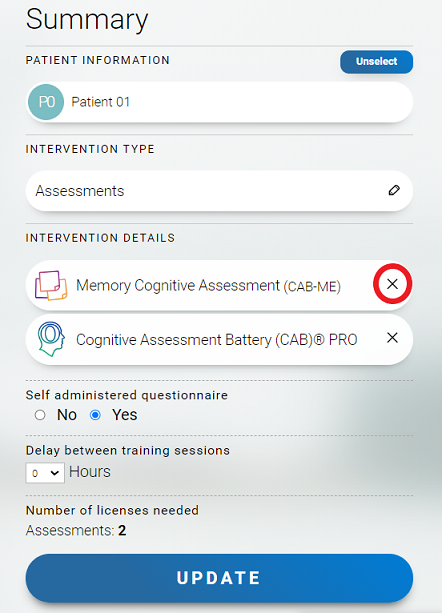
4.1.3 You can also change the option of who answers the questionnaire: the professional or patient. Click the Update button to finish.
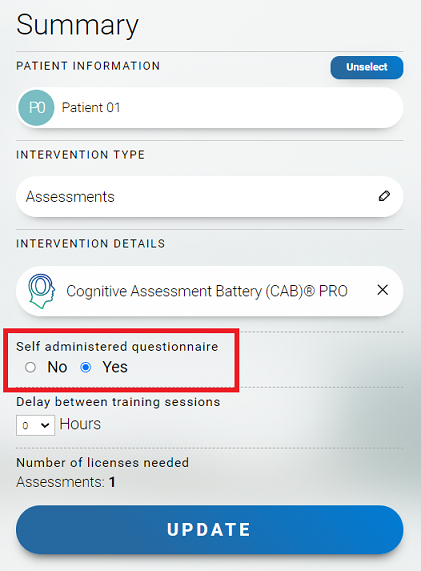
Note: the self-administered questionnaire option is not available for patients under 16 years of age.
4.2 If you want to edit or assign trainings
You can modify the training regimen, the rest period between training sessions, the auto-renewal option, or assign a new training.
4.2.1 Click the Edit button in Trainings on the patient’s profile page.
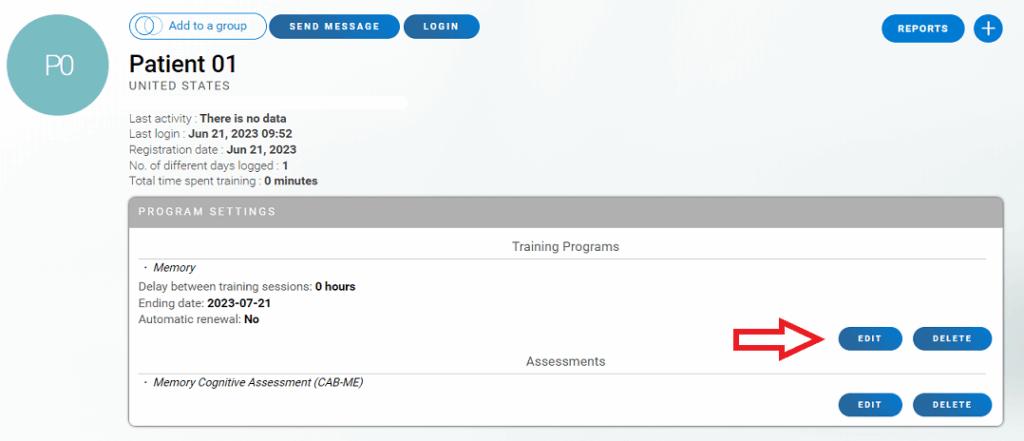
4.2.2 Modify training regimen, rest time between training sessions, and auto-renewal function.
On the page that opens you can change the assigned training regimen, the rest between training sessions, or the auto-renew function. The healthcare professional can extend the training period by selecting an additional number of months from the drop-down menu.
Select the desired option on the right side of the screen and then click the Update button.
Note: Clicking the Unselect button will unselect that patient. To start over, you will need to return to the patient menu on your account home page.
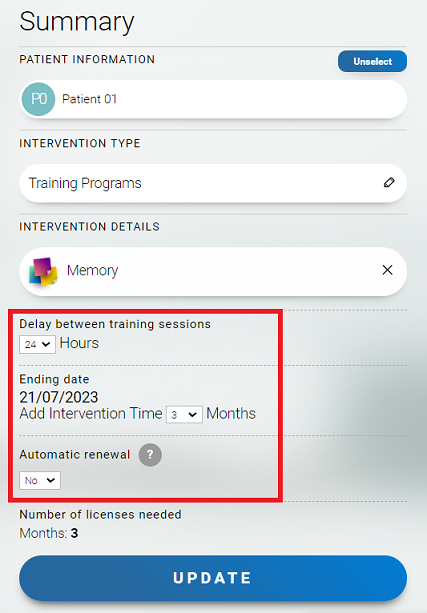
Attention: You cannot reduce the training period for patients. If you wish to do so, please send your request with the patient’s email to support@cognifit.com.
4.2.3 Assign another training
You can assign a new type of training to a patient or replace a previously assigned training. Select the desired training plan from the menu.
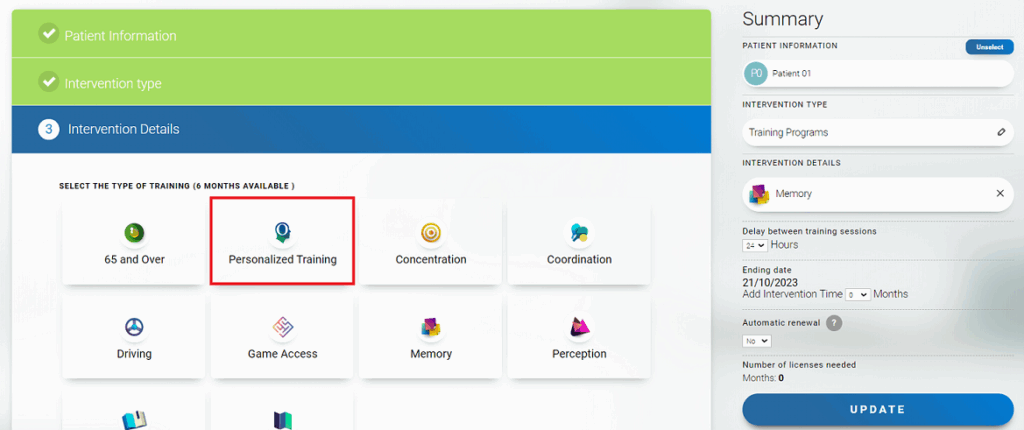
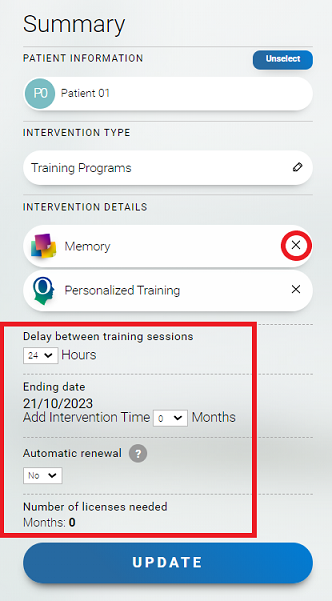
4.2.4 The new training will appear on the right side of the screen. Select the necessary options for rest time between sessions, end date, and automatic renewal.
If you want to replace the old training plan with a new one, click the “x” next to the training you want to delete.
Review all changes made and click the Update button.
If you have any questions you can contact our support team by sending an email to support@cognifit.com