 by
by Once you have purchased assessment licenses or monthly training licenses, you are ready to add patients to your account and select their intervention in a few clicks.
This video will show you how to add patients to your account.
Read this article for a step-by-step tutorial to walk you through the process.
1. Go to the patients page
Log into your CogniFit account and click on the “Patients” tab at the top

2. Click on the “Add patients” option
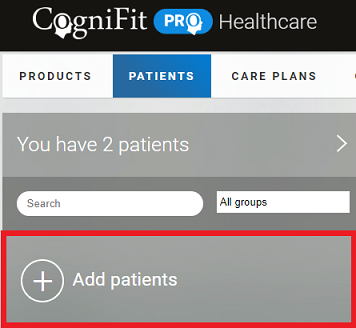
3. Entering patients information
After clicking on Add Patients, you will see the following screen:
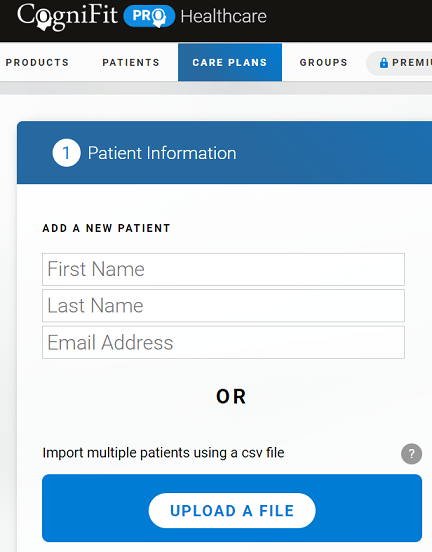
The healthcare professional will have multiple options for how to add patients to the platform: They can import a list of patients through a CSV file, or they may add one or multiple patients manually.
3.1 If the healthcare professional wants to upload a file with a list of patients in CSV format, they should click on Upload a File. The system will ask them to select a file from their computer and it will be uploaded to the platform.
Please Note: The spreadsheet should have one contact per line. For more information or to download an example, the healthcare professional can click on the question mark icon.
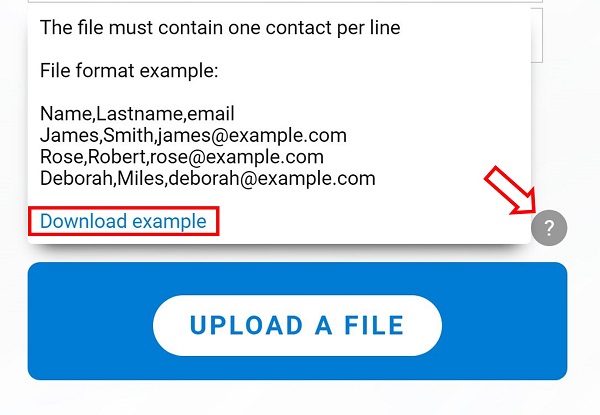
Learn more about how to import your patient database in this video.
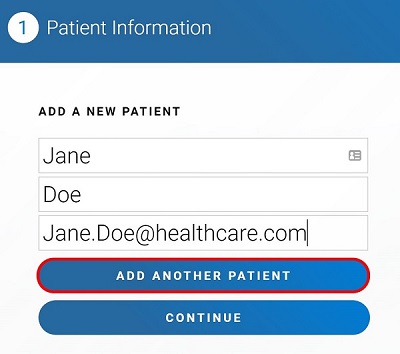
3.2 If the healthcare professional wishes to add a single patient, they should introduce the patient’s details and click Continue.
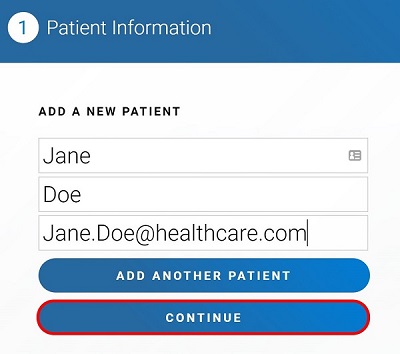
3.3 If the healthcare professional wants to add multiple patients, they should enter the details of the first patient and click Add Another Patient. This process should may be repeated until the healthcare professional has added all patients. When complete, press Continue.
Please Note: With this option all patients will be assigned the same intervention type and details. If you want to personalize the intervention you need to add the patients one by one as shown in the previous step.
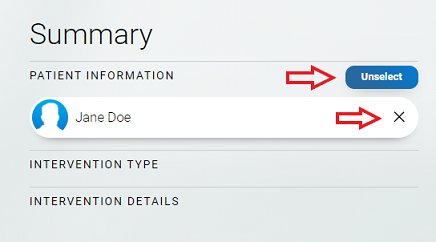
3.4 The healthcare professional can remove a patient(s) even after clicking on the Continue button. Simply click on the “X” near the patient’s name or the “Unselect” button and continue.
Why does CogniFit ask for patients’ email addresses?
If patients would use your Health professional account to complete their intervention, they would see other patients results. To avoid this privacy breach, patients need their own access by signing up for CogniFit. An email address is a unique identifier and the best way to link your Health Professional account with your patients which allows you to receive the results of their interventions.
For privacy reasons, you can use fake email addresses. In that case, patients will not be able to reset their password on their own. For more information please contact us at support@cognifit.com
4. Choose the type of intervention
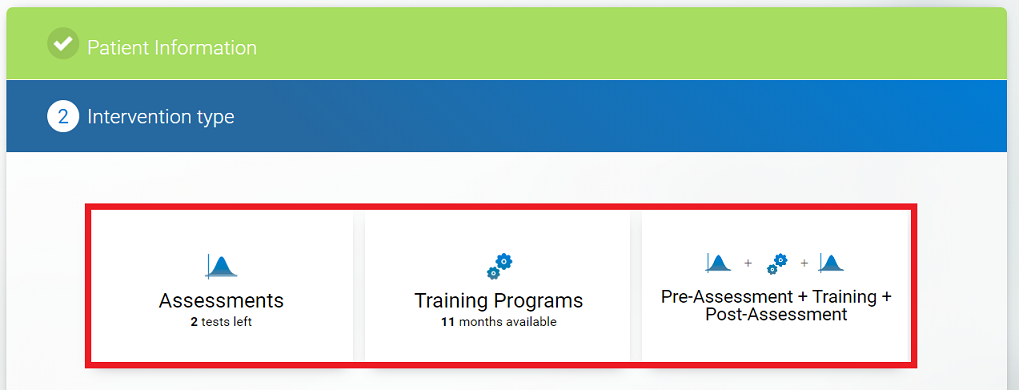
Learn more about CogniFit licenses and their costs here.
5. Choose the intervention details
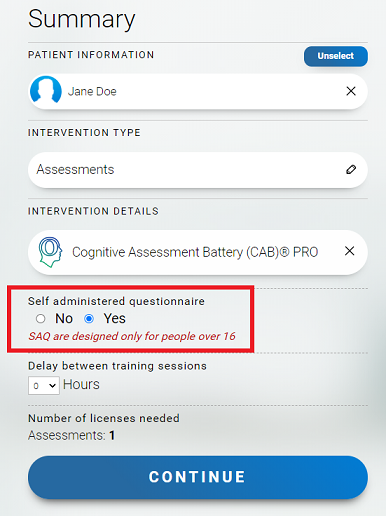
5.1 If you selected the Assessment intervention.
Choose the type of assessment you would like the patient to complete.
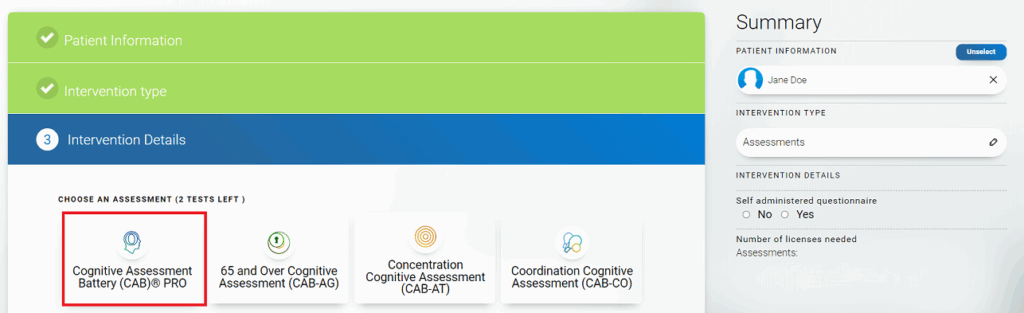
Note that all of the assessments start with a questionnaire. If you would like to complete the questionnaire yourself, and not the patient, click on the “no” option in the “self-administered questionnaire” area.
Attention, the self-administered questionnaire option is not available for patients under 16 years old.
5.2 If you selected the Training intervention.
Choose the type of training program you would like the patient to complete.
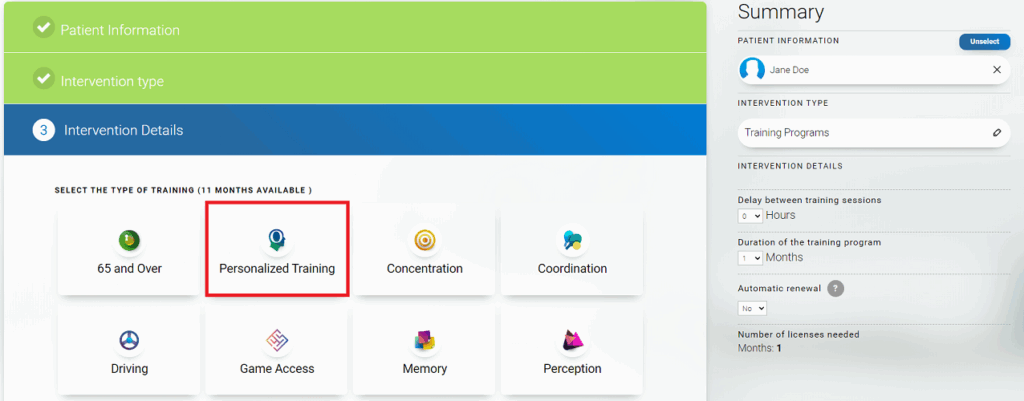
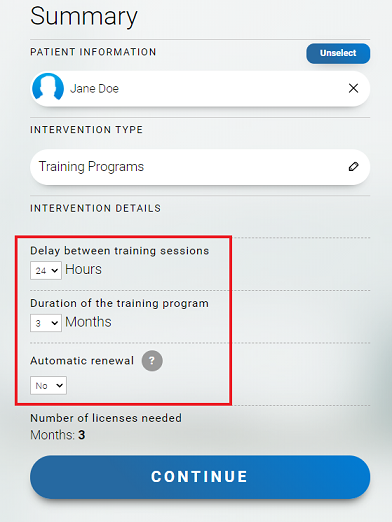
You can customize the training regimen with the following options:
- Delay between training sessions: You can block patients from completing several training sessions in a row. For example, if you wish patients to train only when at your office, set a delay of 24 hours in between training sessions. If you would like patients to train as many times as they want, do not block them by setting no delay between training sessions (0 hour delay option). There is no difference in pricing whether you add a delay between training sessions or not
- Duration of the training program: During this training period, patients will have access to the training regimen you customized for them. All of our peer-reviewed publications show that people start seeing some benefits after 3 months on average, if they complete at least one training session every other day.
- Automatic renewal: If you wish the patient to automatically continue with another training period. The most flexible combination is to set a one-month training period with auto-renewal.
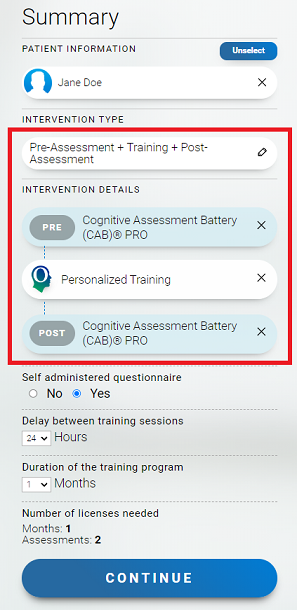
5.3 You can also set a Pre- and Post- assessment intervention so that you can formally track how much progress patients make after the full training period.
Please note that the pre-assessment and post-assessment are parallel forms of the same assessment type.
Choose the type of assessment and training program you would like the patient to complete.
6. Click the “continue” button
At the last steps your patient can create their own account or you can create it for them.
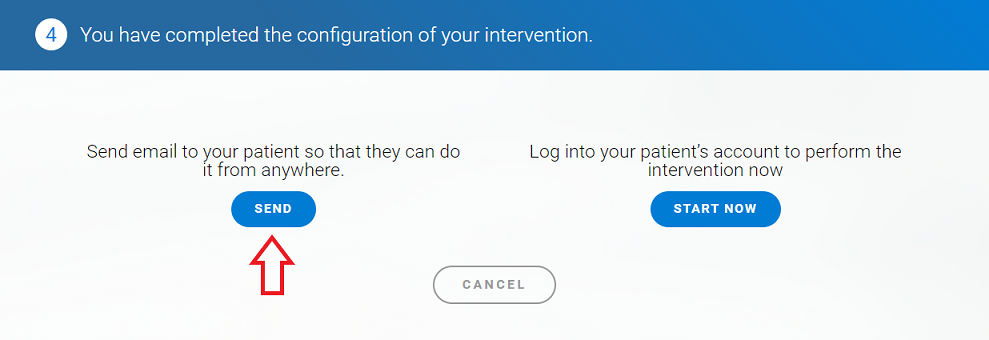
6.1 If you click on “Send” button, an email will be sent to your patient with a link. When the patient clicks on the link they can register their own account with CogniFit and start their intervention.
Please note that if the patient hasn’t received the email it can also be in the spam or junk folder.
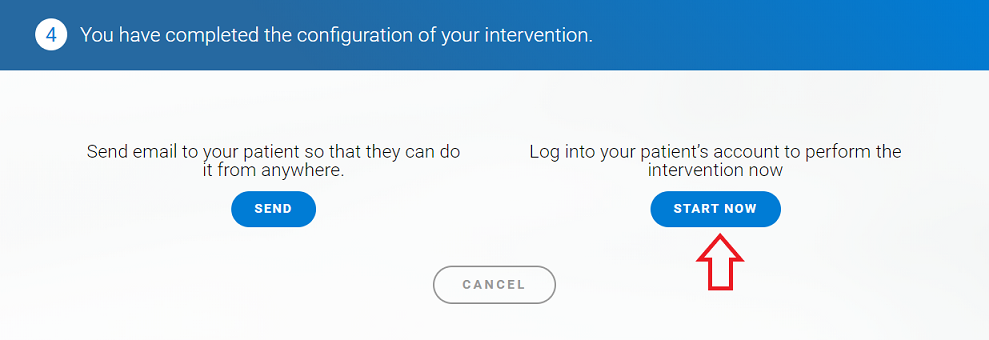
6.2 Or you can click on “Start now” button and create an account on the patient’s behalf which they can use to log into to start their intervention.
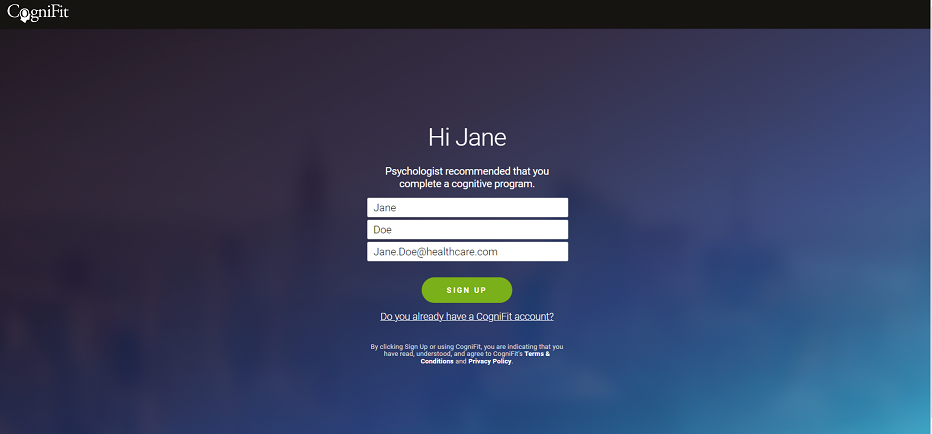
In a new screen you will be able to create the account. Please ensure you use the same email address you used to add the patient to your platform to create the link between your accounts which allows you to see the patients results.
If you have any questions you can contact our support team by sending an email to support@cognifit.com