 by
by Video Coach is a unique and engaging way to use CogniFit that can help users feel more motivated and confident in their cognitive training.
1. What is Video Coach?
When you select the Video Coach training sessions from CogniFit, you will hear from our team of highly qualified wellness coaches who will help you understand not only the skills you will be training, but how those skills fit in to your daily life.
In addition to this, the coaches explain each of the training tasks to be performed during the Video Coach training session, ensuring users feel confident and understand exactly what they need to do.
Each Video Coach Session focuses on a specific cognitive ability and includes three fun and stimulating brain games that help train that specific ability.
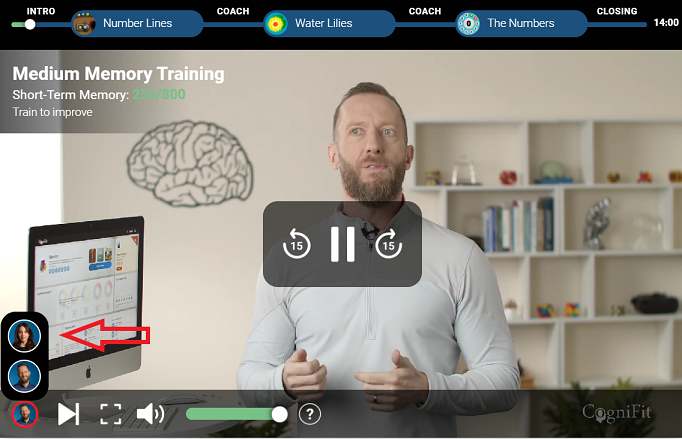
When choosing a session, the user will have the option to select their preferred Video Coach trainer by tapping on their photo on the bottom left.
Once a trainer has been selected, they will continue to be selected by default until the user selects a different trainer.
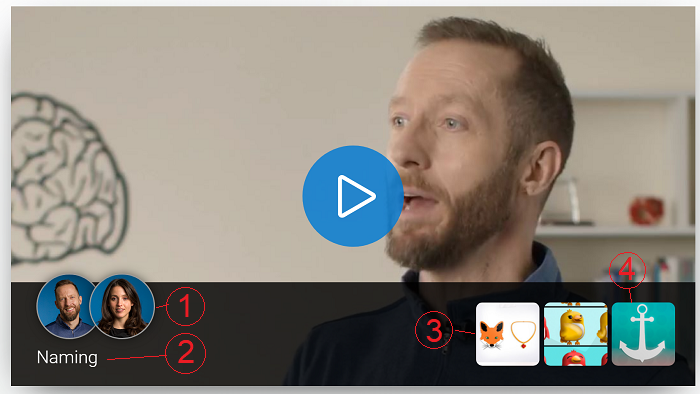
1. Video Coach trainer options.
2. Cognitive Ability trained.
3. Icons of the brain games included.
4. Icon of the assessment task included.
2. Where Can I Find Video Coach?
Video Coach can be located in the main section of the CogniFit platform for individuals. Here are the steps to locate it:
Note: You will need a CogniFit subscription to access Video Coach. For more information on how to subscribe, continue to Section 3 of this article, or read How to Subscribe to CogniFit.
2.1 Using a Computer
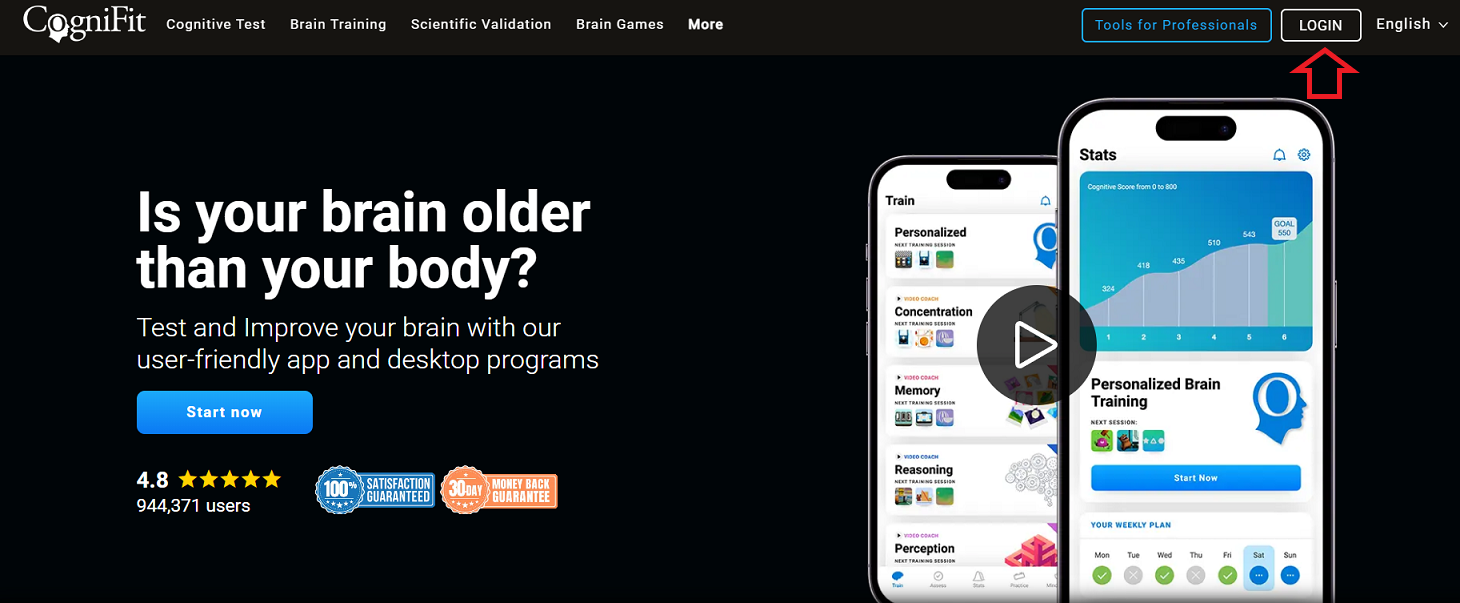
2.1.1 Go to the CogniFit Homepage
Navigate to the CogniFit homepage and log in to your account by clicking on the button in the top right corner.
2.1.2 Select the Video Coach Tab from The Navigation Bar
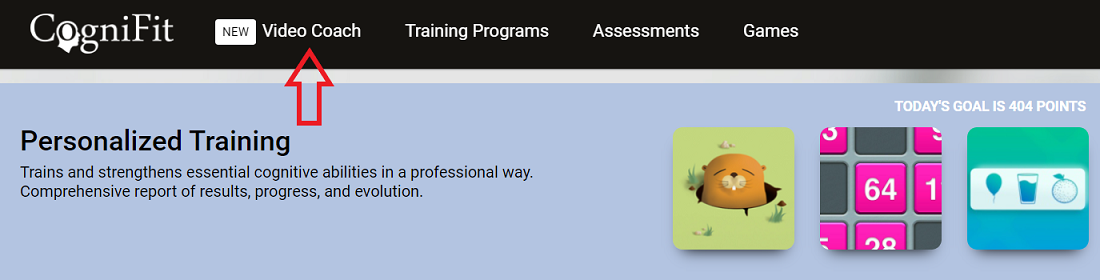
From your CogniFit account, click on the Video Coach tab in the navigation bar at the top of the screen to navigate to the Video Coach platform.
2.1.3 Select the Video Coach Tab from The Navigation Bar
From your CogniFit account, click on the Video Coach tab in the navigation bar at the top of the screen to navigate to the Video Coach platform.
From here, simply click on the Video Coach training session of your choice.
Note: You can choose to train a specific cognitive area (e.g., memory, reasoning, concentration…), as well as the level of training (basic, medium, advanced).
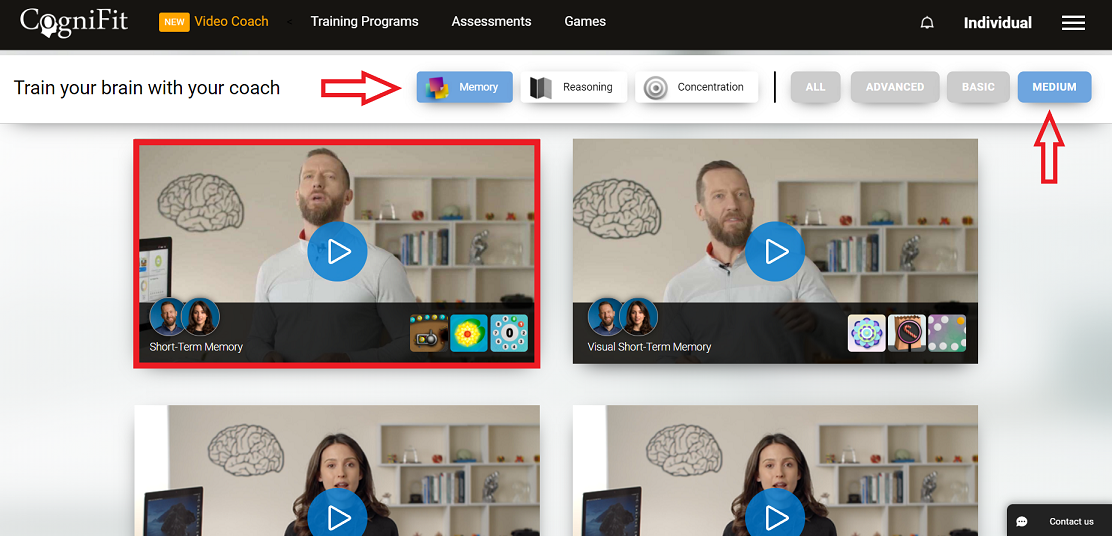
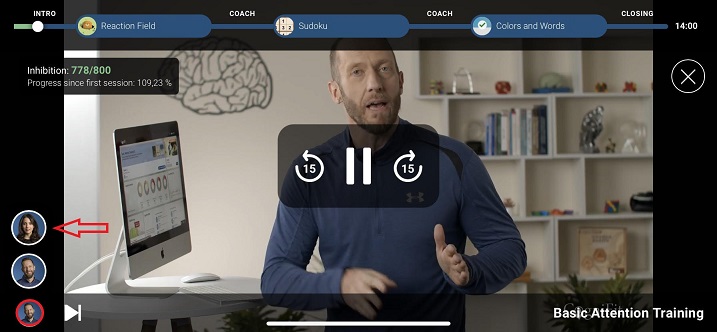
Attention: Once you have selected a Video Coach trainer, that choice will be selected by default for future Video Coach training sessions. You may change your selections at any time. If you want to change your video coach during a training session, click on the coach icon in the left corner of the screen and then select another coach and click on his or her picture. You will then begin training with the selected coach.
2.2 Using a Mobile Phone
2.2.1 Open the CogniFit App
Open the CogniFit App on your smartphone. If you do not yet have the mobile app, you can download it from the Google Play Store here, or from the Apple App Store here.
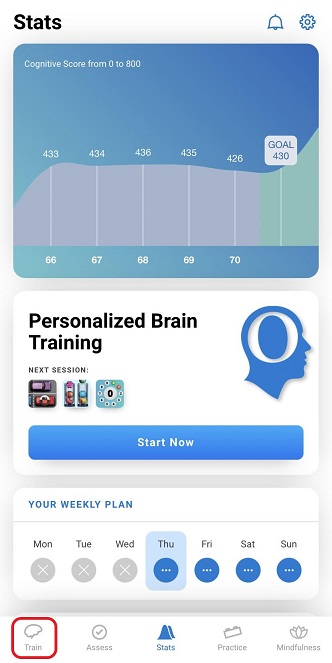
2.2.2 Navigate to the Training Tab
Click on the icon labeled Train in the bottom navigation bar on the app to open the Training tab.
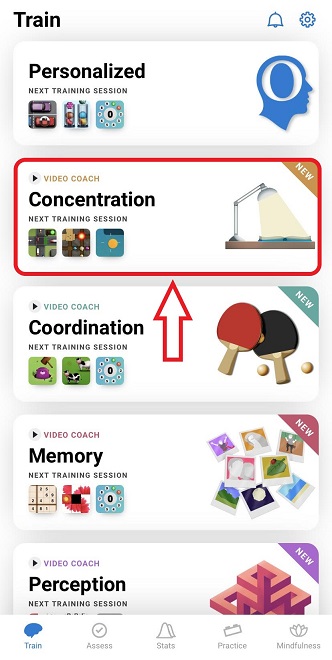
2.2.3 Choose a training with an available Video Coaching option
Select the training you are interested in and click on it.
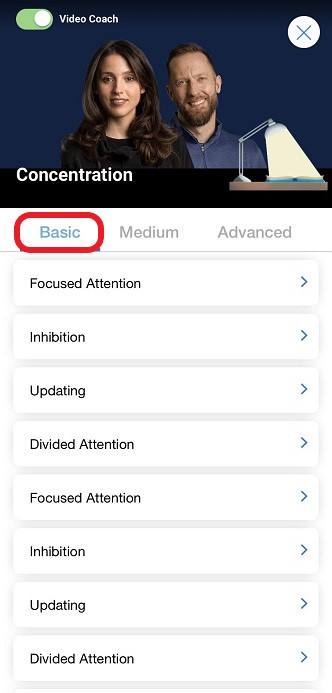
2.2.4 Choose Your Desired Difficulty
In the Video Coach section of the App, you will see three tabs near the top of the screen that allow you to choose the desired difficulty level (Basic, Medium, and Advanced training).
2.2.5 Choose the Cognitive Ability You Want to Train
Once you have selected the desired difficulty, the next step to begin the Video Coach training session is to tap on the cognitive skill you wish to train.
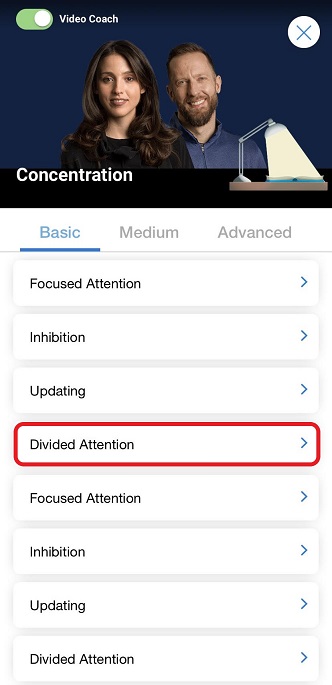
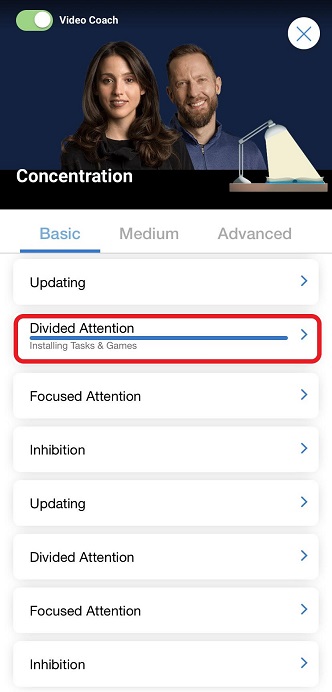
Note: The first time you tap on a Video Coach training session on your mobile device, the App will begin downloading the training material. Please ensure you have a stable internet connection.
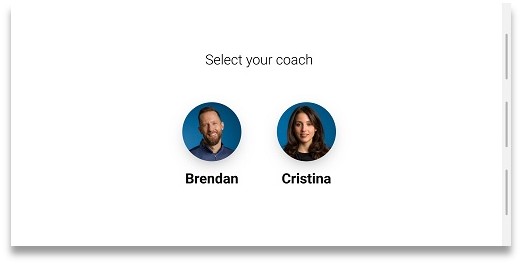
2.2.6 Select the Video Coach Trainer
When the Video Coach session begins, it will ask you to select from our team of Video Coach trainers.
Attention: Once you have selected a Video Coach trainer, that choice will be selected by default for future Video Coach training sessions. You may change your selections at any time. If you want to change your video coach during a training session, click on the coach icon in the left corner of the screen and then select another coach and click on his or her picture. You will then begin training with the selected coach.
3. How Do I Subscribe to Video Coach?
3.1 Using a Computer
To access the Video Coach feature, the user will need to have an active CogniFit Subscription. If you do not have a subscription, you can click on the Lock icon on the middle of each of the Video Coach sessions.
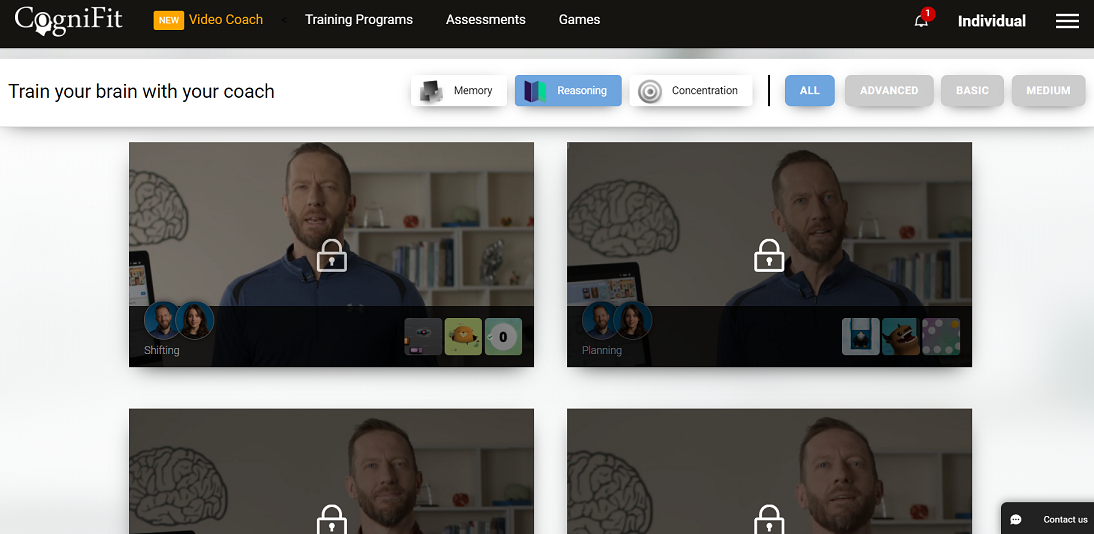
This will take you to a page that explains the various subscription types that are available, the price for each subscription in your local currency, and the options available for subscription length (Monthly, Annual, etc.).
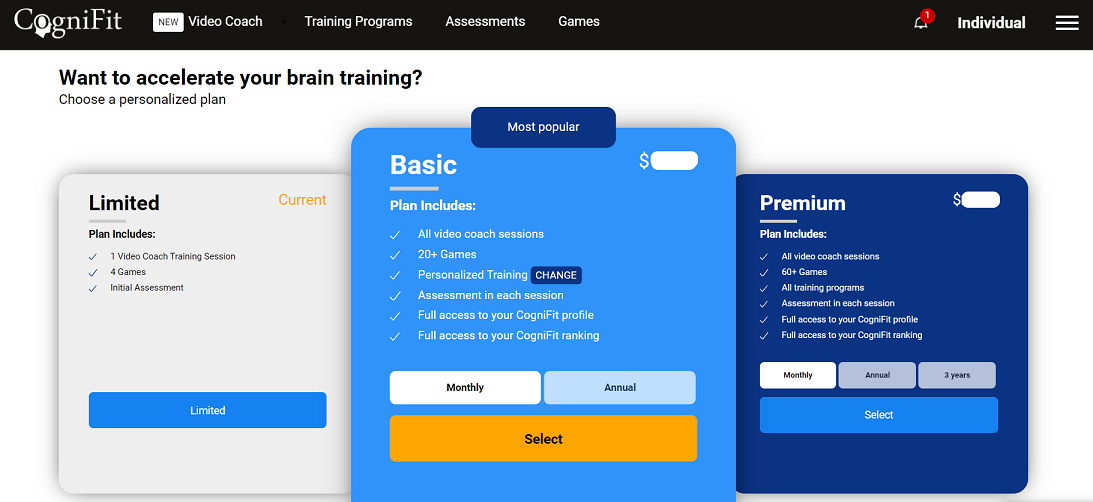
Select the type and length of subscription you prefer and follow the instructions on screen to complete the purchase.
Note: The Video Coach training platform is available for all subscription levels.
3.2 Using a Mobile Device
To access the Video Coach feature, the user will need to have an active CogniFit Subscription. If you do not have a subscription, you can click on one of the Video Coach training options with the Lock icon on the left to open the Subscriptions page.
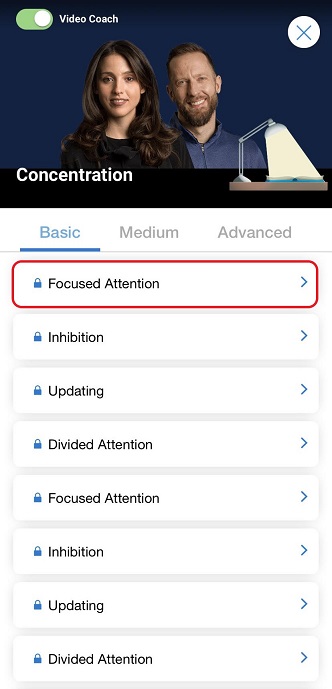
This will take you to a page that explains the various subscription types that are available, the price for each subscription in your local currency, and the options available for subscription length (Monthly, Annual, etc.)
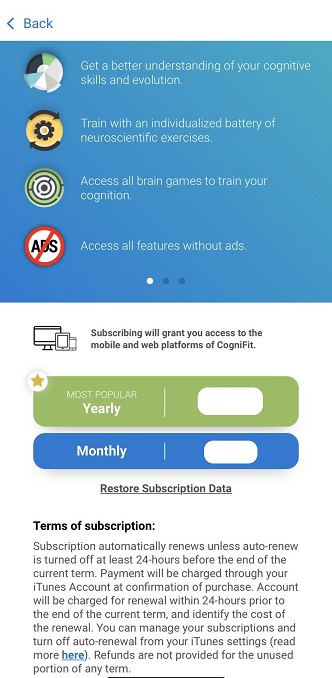
Select the type and length of subscription you prefer and follow the instructions on screen to complete the purchase.
Note: The Video Coach training platform is available for all subscription levels. At the moment, the option to train with a Video Coach is only available to English-speaking users.
If you have any questions, please contact us at support@cognifit.com.