 by
by This option is only available to registered CogniFit users. By default, the CogniFit app works in the mode you have configured for your mobile device (dark or light).
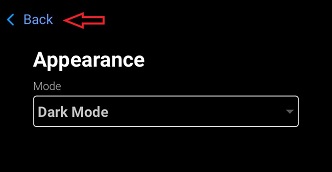
Below is an example of how to activate the dark mode of the application. To change the mode:
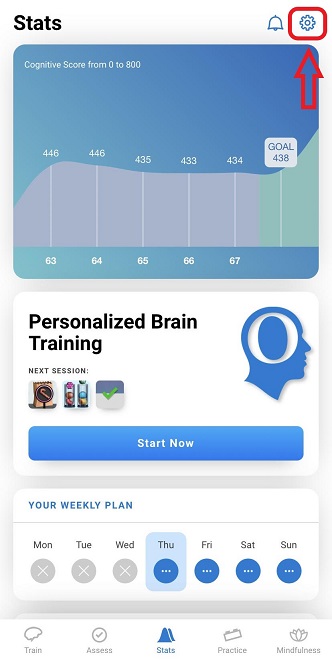
1. Log in to your CogniFit account and click on the account settings menu icon in the upper right corner of the screen.
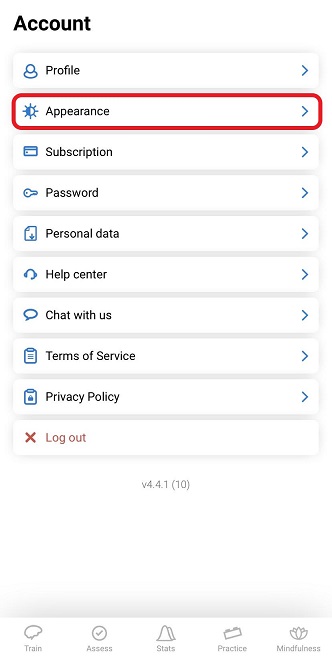
2.Then click on the “Appearance” button.
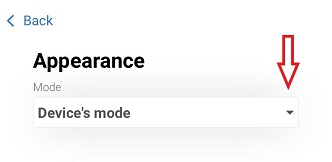
3. On the page that opens, click on the drop-down menu arrow.
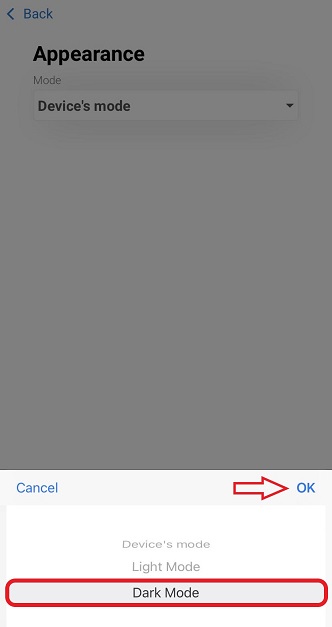
4. A menu will open at the bottom of the screen. Select the mode you are interested in with your finger. In our example it is dark. Click “OK”.
5.The application will switch to dark mode. Press the “Back” option to return to the main menu.
If you have any questions, you can contact our support team by sending an email to support@cognifit.com