 by
by Thanks for purchasing one of the CogniFit assessments. Upon completion of each assessment, you will be able to download the results of the assessment at any time. This results report will show your scores for the specific assessment and will not be impacted by the scores or data from other testing or training sessions.
For more information on how to find and start an assessment, take a look at our article How to launch the General Cognitive Assessment or another CogniFit assessment?
To download your results report, simply follow the instructions below depending on whether you are using a computer or the mobile app.
1. If you are using a computer
1.1 Log into your CogniFit account.
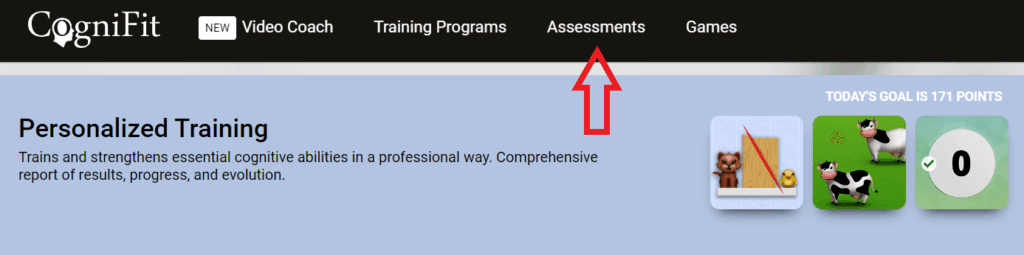
1.2 Click on the Assessments option at the top of your account home page.
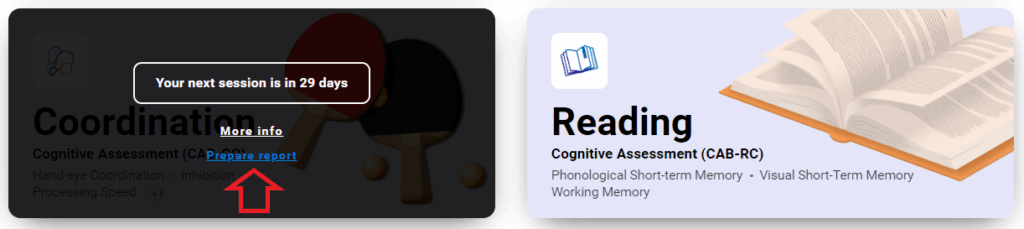
1.3 In the page that opens, scroll down until you see the completed assessment you wish to review, hover your mouse over it and select the option “Prepare report“.
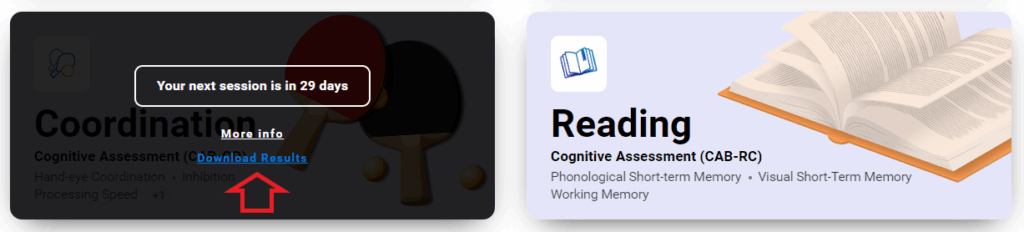
1.4 Wait for the report to be generated. Then click on “Download Results“.
2. If you are using a mobile device
2.1 Launch the CogniFit app.
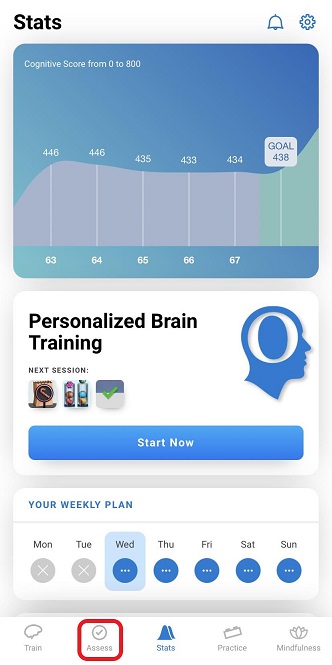
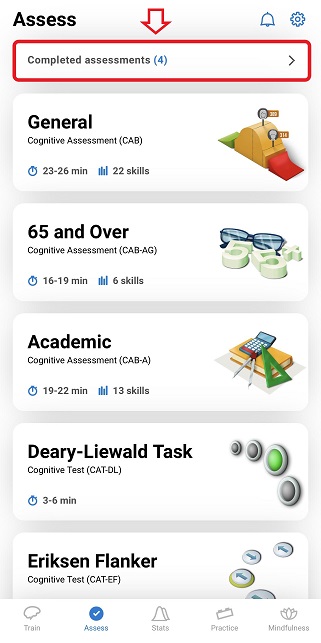
2.2 Tap on the Assess icon in the bottom navigation menu to go to the assessment list.
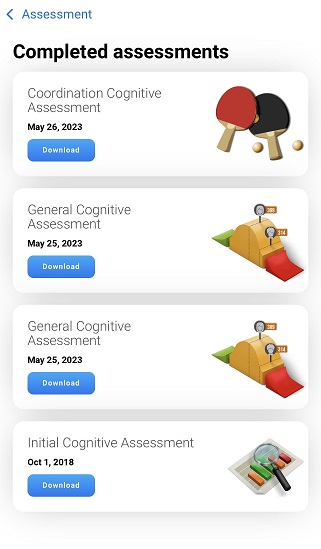
2.3 Tap the Completed assessments option.
2.4 Click on the Download button. If you have completed several evaluations, you can download a report for each of them.
If you have any questions, you can contact our support team by sending an email to support@cognifit.com