 by
by Creating a personal account on CogniFit is quick and easy. If you would like information on how to create other types of CogniFit accounts, please view the related articles on how to create accounts for Healthcare Professionals, Families, Educators, and Researchers.
Here are the simple steps to follow to get started with CogniFit:
1. If you are using a computer
To get started, go to the CogniFit home page. Indicate which country or region you are in. The browser will automatically detect your location. To confirm, click the “Continue” button in the blue bar at the top of the screen.

If you want to change country or region, click on the drop-down menu arrow and select the “Other country or region” option. Click the “Continue” button.

On the page that opens, choose a country or region from the list and click on the selected option to access the CogniFit page for your country or region.

Note: If you want to change the platform language, select the desired language from the drop-down menu in the upper right corner of the page or change the language after registration in your profile settings, following the instructions of this article.
Click the Start Now button.
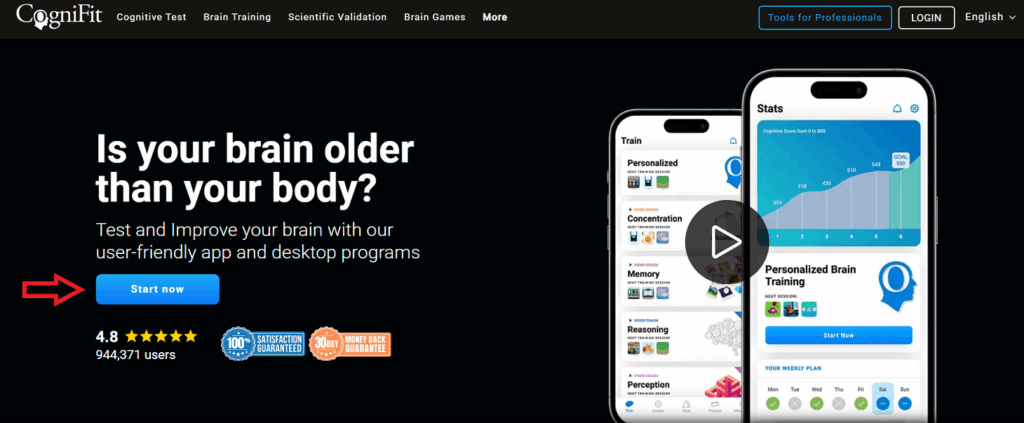
You will have various options for how to register for CogniFit. The following instructions explain each.
1.1. Sign Up Using Email
When filling out your e-mail address, ensure that it is a valid e-mail address, as you will be sent important information regarding your CogniFit account. Once completed, click Next.
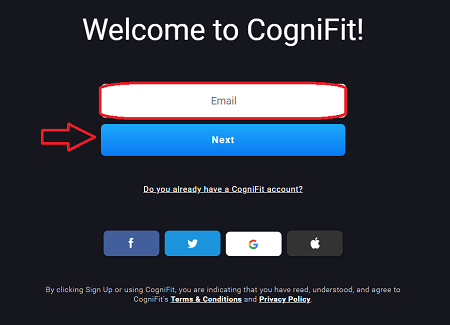
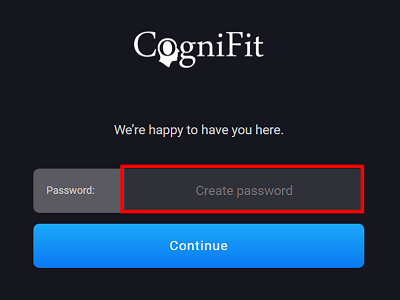
Choose a password and click Continue.
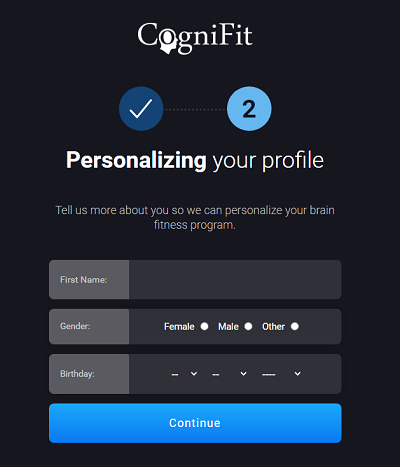
Introduce your name, gender, and date of birth and click Continue.
Follow the instruction on the platform to validate your account. Click Continue.
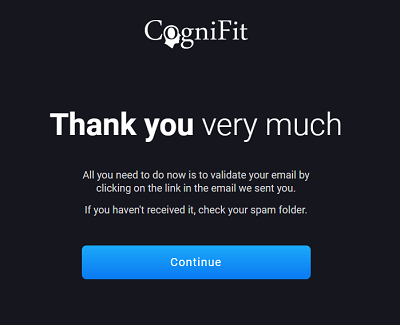
Congratulations! Your account has been created.
1.2 Sign Up Using Facebook
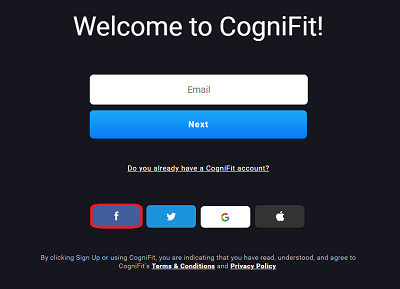
To sign up for CogniFit using your Facebook Account, select the button with the Facebook icon.
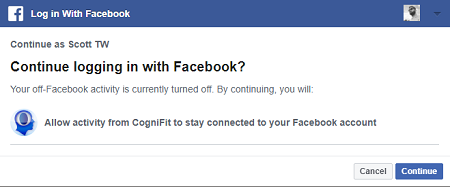
A pop-up window will appear. Click Continue to allow CogniFit to access your name and e-mail address. CogniFit will not post anything to your accounts.
1.3 Sign Up Using Twitter
To sign up for CogniFit using your Twitter Account, select the button with the Twitter icon.
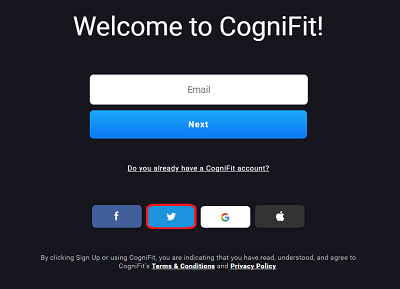
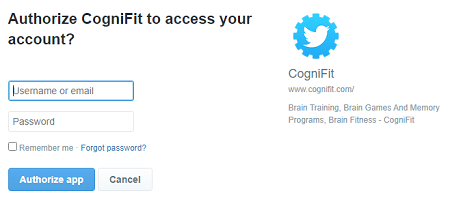
You will be redirected to a Twitter page where you have to enter your Twitter login information and click Authorize App button.
1.4 Sign Up Using Google
To sign up for CogniFit using your Google Account, select the button with the Google icon.
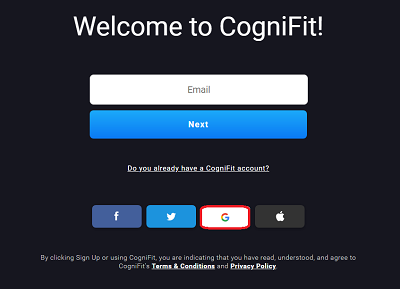
A pop-up window will appear where you can sign up using the Google account of your choice and allow CogniFit to access your name and e-mail address. CogniFit will not post anything to your accounts.
1.5 Sign Up Using Apple ID
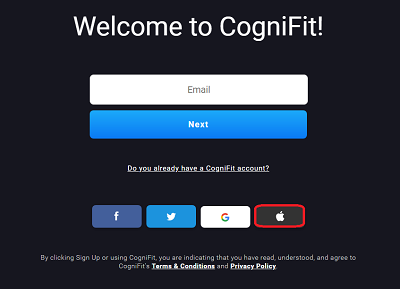
To sign up for CogniFit using your Apple ID, select the button with the Apple icon.
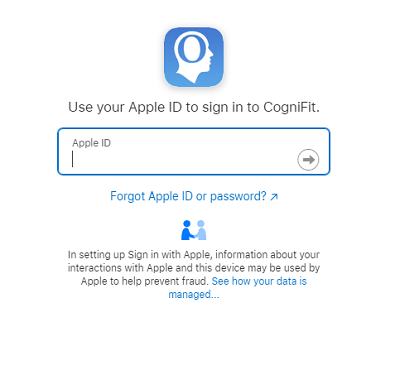
You will be redirected to an Apple page where you have to enter your Apple ID login information.
2. If you are using a mobile device
2.1 Open the application and click on the registration button.
Once you have downloaded the CogniFit app from the app store and open the app, you will see a welcome screen. Click the “Sign up” button.
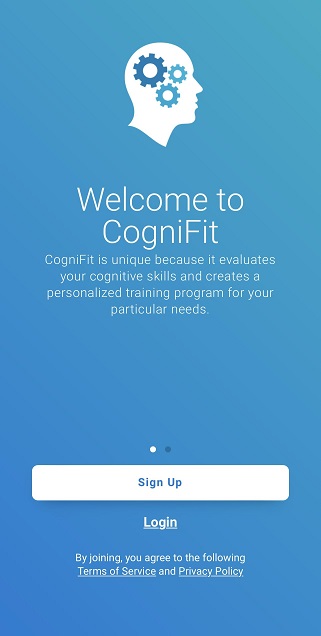
2.2 Entering registration dataThe next step is to enter your registration data.
2.2.1 If you are using an Apple mobile device
The following screen will present you with several options for registering with CogniFit.
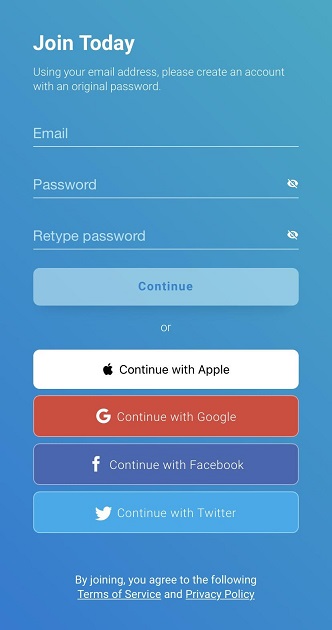
2.2.1.1 Sign Up Using Email on an Apple device
To register for a CogniFit account using an email account, enter your preferred email and password and press Continue.
When filling out your e-mail address, ensure that it is a valid e-mail address, as you will be sent important information regarding your CogniFit account.
2.2.1.2 Sign Up Using Facebook, Twitter, Google, or Apple ID on an Apple device
To register for a CogniFit account using Facebook, Twitter, Google, or Apple ID, select the corresponding button.
Follow the instructions to sign up using the account of your choice and allow CogniFit to access your name and e-mail address. CogniFit will not post anything to your accounts.
2.2.2 If you are using an Android mobile device
The following screen will present you with several options for registering with CogniFit.
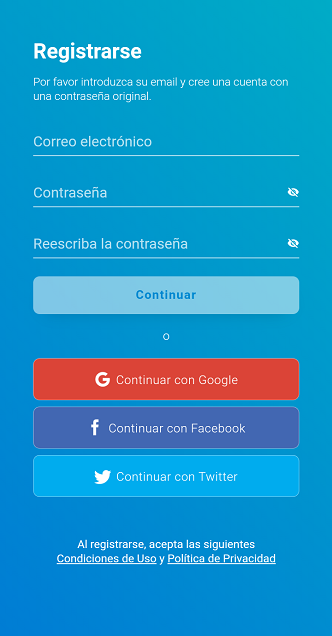
2.2.2.1 Sign Up Using Email on an Android device
To register for a CogniFit account using an email account, enter your preferred email and password and press Continue.
When filling out your e-mail address, ensure that it is a valid e-mail address, as you will be sent important information regarding your CogniFit account.
2.2.2.2 Sign Up Using Facebook, Twitter or Google on an Android device
To register for a CogniFit account using Facebook, Twitter or Google, select the corresponding button.
Follow the instructions to sign up using the account of your choice and allow CogniFit to access your name and e-mail address. CogniFit will not post anything to your accounts.
Upon completing your registration, you will be brought to your new CogniFit homepage. Happy brain training!
Please remember that by clicking Sign Up or using CogniFit, you are indicating that you have read, understood, and agree to CogniFit’s Terms & Conditions and Privacy Policy.
If you have any questions you can contact our support team by sending an email to support@cognifit.com