 by
by Attention: Please keep in mind that once a user is deleted, it will not be possible to recover data or information. Ensure that you have saved all of the necessary data before deleting a user. The user profile will continue to exist in the database, and this user can decide to later join CogniFit with an individual account.
1. Delete a user who has not yet accepted your invitation / is not registered with CogniFit
1.1 Click on the “Patients” tab on your account home page and select the patient you want to remove from your professional account.
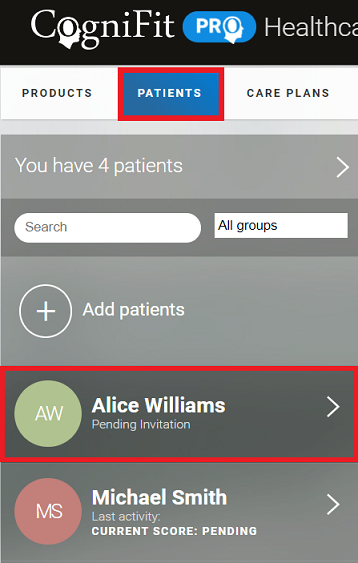
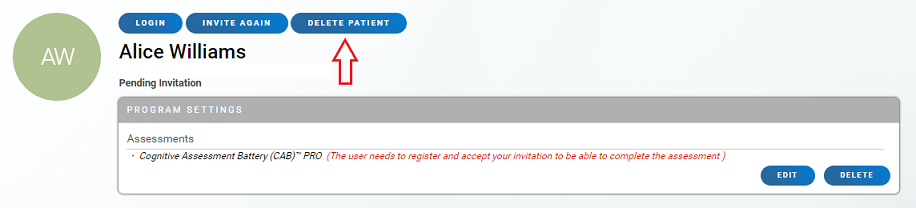
1.2 The patient’s profile page will open. To delete this user click on the “Delete patient” button.
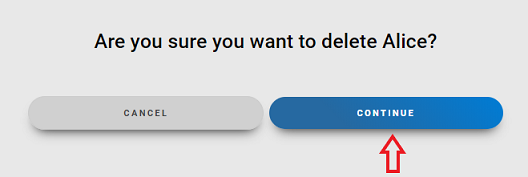
1.3 Confirm your decision. Once you have clicked the “Continue” button, the patient will be removed from your professional account.
2. Delete other users
2.1 Click on the “Patients” tab on your account home page and select the patient you want to remove from your professional account.
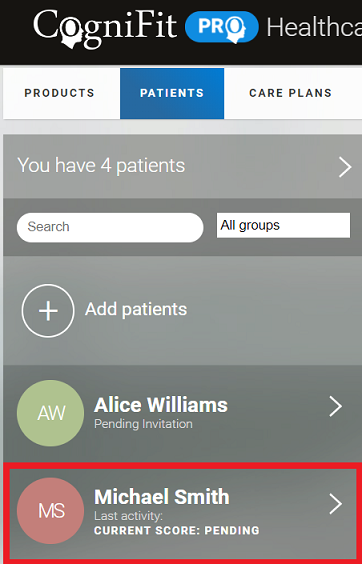
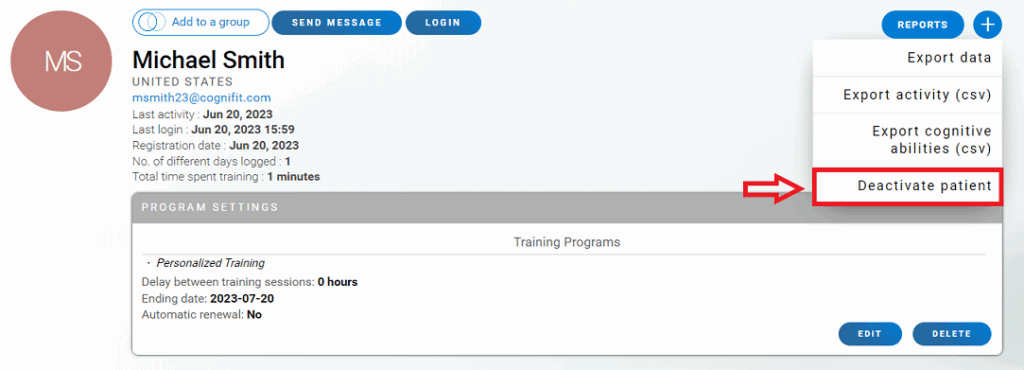
2.2 The patient’s profile page will open. To delete this user click on the “+” icon. In the drop-down menu that opens choose the “Deactivate patient” option.
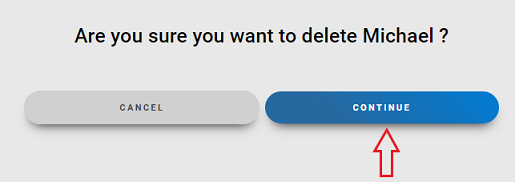
2.3 Confirm your decision. Once you have clicked the “Continue” button, the patient will be removed from your professional account.
Note: After deleting the user, you will not have access to their data or files. You will have the option to use the licenses assigned to the deleted user with another patient.
If you have any questions you can contact our support team by sending an email to support@cognifit.com